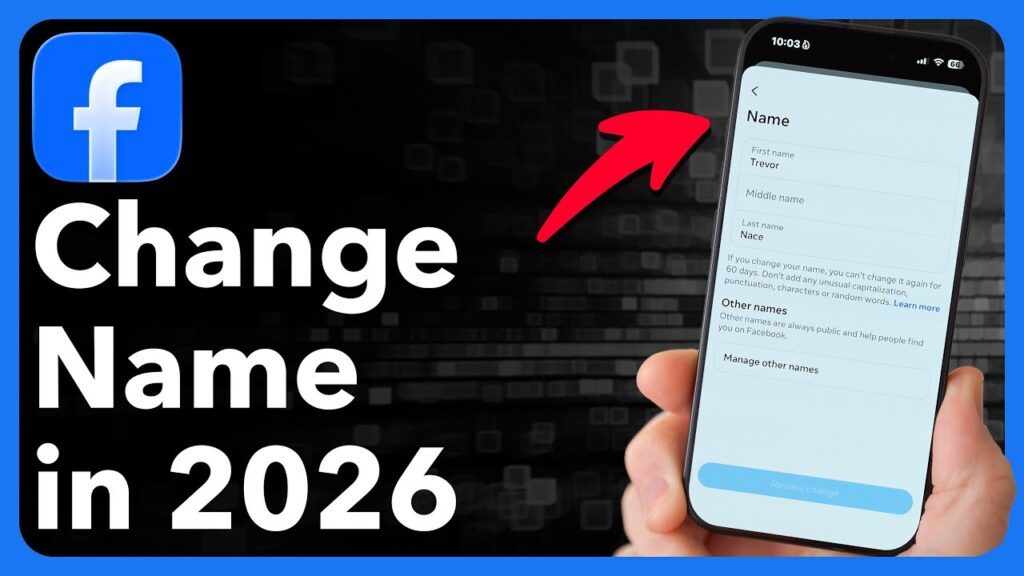
In the digital landscape of 2026, your Facebook name is more than just a label—it is your primary identifier within the Meta ecosystem, spanning across Facebook, Instagram, and Horizon Worlds. Whether you have recently married, transitioned professionally, or are simply updating your digital identity to reflect your real-life name, the process has been streamlined through the centralized Meta Accounts Center.
This 3500-word guide provides an exhaustive look at the technical steps, policy restrictions, and “edge-case” scenarios involved in changing your Facebook name.
Part 1: The Technical Path (Step-by-Step)
With the 2026 update to the Meta interface, name changes are no longer buried in individual app settings. They are managed through a unified “Accounts Center.”
1. Changing Name on Desktop (Browser)
- Click on your Profile Picture in the top right corner.
- Select Settings & Privacy, then click Settings.
- On the left-hand sidebar, click the Accounts Center box (usually at the very top).
- Click on Profiles and select the specific Facebook profile you wish to edit.
- Select Name.
- Enter your new First, Middle (optional), and Last name.
- Click Review Change.
- Choose how your name will appear on your profile and click Save.
2. Changing Name on Mobile (iOS & Android)
- Tap the Menu (three lines) in the bottom right (iOS) or top right (Android).
- Tap the Gear Icon (Settings).
- Tap See more in Accounts Center.
- Select Profiles, then choose your Facebook account.
- Tap Name.
- Input your new details and select Review Change.
Part 2: The “60-Day Rule” and Other Critical Policies
Facebook maintains a strict “Real Name” policy to prevent impersonation and spam. Understanding these rules is essential before you commit to a change.
1. The 60-Day Lock
Once you change your name, you cannot change it again for 60 days. This is a hard-coded security feature.
- The Exception: If you made a significant typo (e.g., “Jhon” instead of “John”), you can sometimes revert to your previous name within 48 hours, but you cannot change it to a new third name.
2. Forbidden Characters and Formats
Your name cannot include:
- Symbols, numbers, or unusual capitalization (e.g., “J0hn Sm1th” or “JoHn SmItH”).
- Characters from multiple languages (e.g., mixing Cyrillic and Latin scripts).
- Professional or religious titles (e.g., “Dr.”, “Sir”, “Pastor”).
- Offensive or suggestive words of any kind.
- The names of organizations or businesses (these must be Pages, not Profiles).
3. The “Real Name” Requirement
Meta’s AI now scans name changes for “Authenticity Signals.” If you attempt to change your name to something clearly fake (e.g., “Pizza Eater”), the system may automatically reject the change or lock your account until you provide ID.
Part 3: Professional and Nicknames (“Other Names”)
If you are a professional who wants to be found by a maiden name, a pen name, or a nickname without changing your legal name, Facebook offers the “Other Names” feature.
How to Add an Alias:
- In the Name section of the Accounts Center, tap Manage other names.
- Select the type of name (Nickname, Maiden Name, Professional Name, etc.).
- Check the box “Show at top of profile” if you want this name to appear in parentheses next to your main name (e.g., Jane Doe (The Architect)).
This is the recommended path for creators and public figures who want to maintain a “Searchable” brand identity while keeping their account linked to their legal identity.
Part 4: Troubleshooting Name Change Rejections
Sometimes, even a legitimate name change is blocked. Here is how to handle a “Name Change Not Allowed” error.
1. Conflicting Identity Signals
If your Facebook name differs significantly from your linked Instagram account or Meta Quest profile, the AI may flag the change as a “Security Risk.” Ensure your names are consistent across the Accounts Center if you have enabled “Sync Profile Info.”
2. Verification Requests
If Meta doubts the validity of your new name, they will ask you to upload a document.
- Option 1: A government-issued ID (Passport, Driver’s License).
- Option 2: Two non-government documents (Bank statement and a Library card) that show the same name.
3. Frequent Change Flagging
If you have changed your name multiple times over several years, your account may be “Rate Limited.” In this case, you may have to wait 90 to 120 days instead of the standard 60.
Part 5: Implications of a Name Change
Changing your name affects more than just your profile header:
- Searchability: It may take 24–48 hours for the Facebook search index to update. During this time, people searching for your new name might not find you.
- Tagging: Old tags in photos will update automatically, but “Mention” text in old comments (which is static) will still show your old name.
- Login Credentials: Your login email/phone number does not change, only your display name.
Part 6: Managing Names for Deceased or Incapacitated Users
In 2026, Meta has strict protocols for “Memorialized Accounts.”
- Legacy Contacts: A designated legacy contact can update the profile picture and cover photo, but they cannot change the name of the deceased person.
- Account Removal: If a legal name change is required for a deceased person’s estate matters, the executor must provide a death certificate and legal proof of authority to Meta’s Law Enforcement Online Request System.
Conclusion: Identity in the Meta Age
Changing your Facebook name in 2026 is a straightforward process thanks to the Accounts Center, but it requires a strategic approach due to the 60-day lock and authenticity AI. Always ensure your name reflects your real-world identity to avoid security freezes and ensure a seamless experience across the Metaverse.
Keywords: Change Facebook Name 2026, Meta Accounts Center Name Change, Facebook Name Policy, Add Nickname Facebook, Facebook Identity Verification, 60-day name change rule.