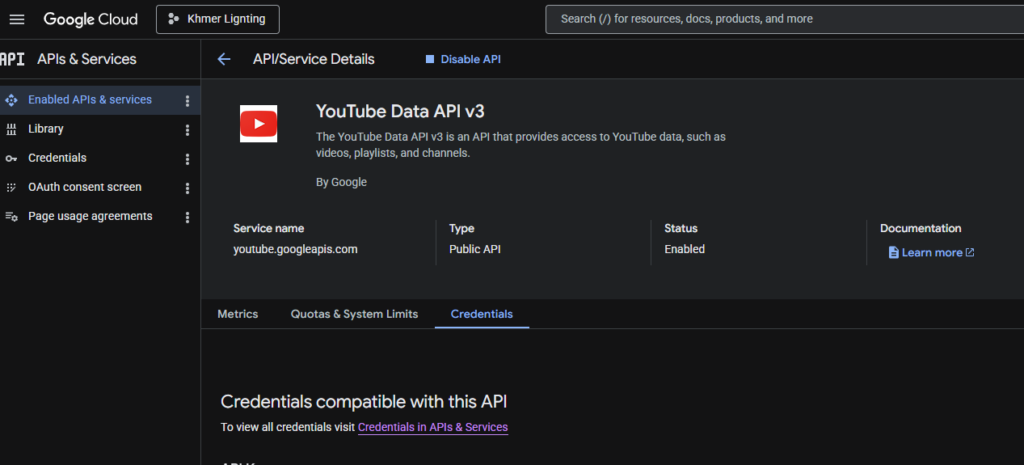
How to Create YouTube Data API v3: Integrating video ecosystems into applications has become a standard requirement for software engineers, data analysts, and marketing automation systems. Whether you are building an automated content dashboard, extracting cross-platform video performance metrics, or developing an enterprise publishing tool, the YouTube Data API v3 serves as your official gateway to the platform.
How to Create YouTube Data API v3
Youtube Data API v3 link: https://console.cloud.google.com/projectselector2/apis/api/youtube.googleapis.com/credentials?pli=1&supportedpurview=project
This technical guide walks through the entire engineering lifecycle of provisioning, configuring, and deploying the YouTube Data API v3. We will break down project creation inside the Google Cloud Platform (GCP) console, distinguish between API Keys and OAuth 2.0 architectures, analyze the algorithmic token budget system, and execute live API calls with production-ready code.
1. Google Cloud Platform Provisioning Pipeline
To communicate programmatically with the servers, your requests must map to an active developer infrastructure. Follow this precise configuration path within the Google Cloud Console to provision your endpoint:
Step 1: Initialize the Target Project
Navigate to the Google Cloud Console. Click the project dropdown selection menu located on the upper-left navigation banner and select New Project. Assign a distinct, recognizable identifier (such as production-video-pipeline-v3). If you are working within a corporate enterprise organization, assign an appropriate Billing Account to prevent immediate execution pauses when scaling up resources.
Step 2: Access the API Infrastructure Library
Once your project finishes provisioning, open the left-side navigation drawer, hover over the APIs & Services group, and select Library.
Step 3: Enable the Target Service
In the centralized search marketplace input field, type YouTube Data API v3. Click on the primary matching service result. On the unified service overview screen, click the blue Enable button.
Google Cloud Console ➔ Create Project ➔ APIs & Services Library ➔ Search "YouTube Data API v3" ➔ Enable
After deployment completes, your project is officially authorized to route programmatic calls, and your tracking dashboards will start recording telemetry.
2. Choosing the Right Security Architecture: API Keys vs. OAuth 2.0
A critical step in setting up your API is choosing the right authentication model. Selecting the wrong path can create serious security vulnerabilities or block critical data endpoints.
API Keys (Public Data Access)
API Keys are basic, single-string tokens passing directly inside the query string or request headers. They are intended exclusively for reading public, unauthenticated data assets. Use an API key if your app only needs to pull public view counts, fetch playlist metadata, or scrape public comment threads.
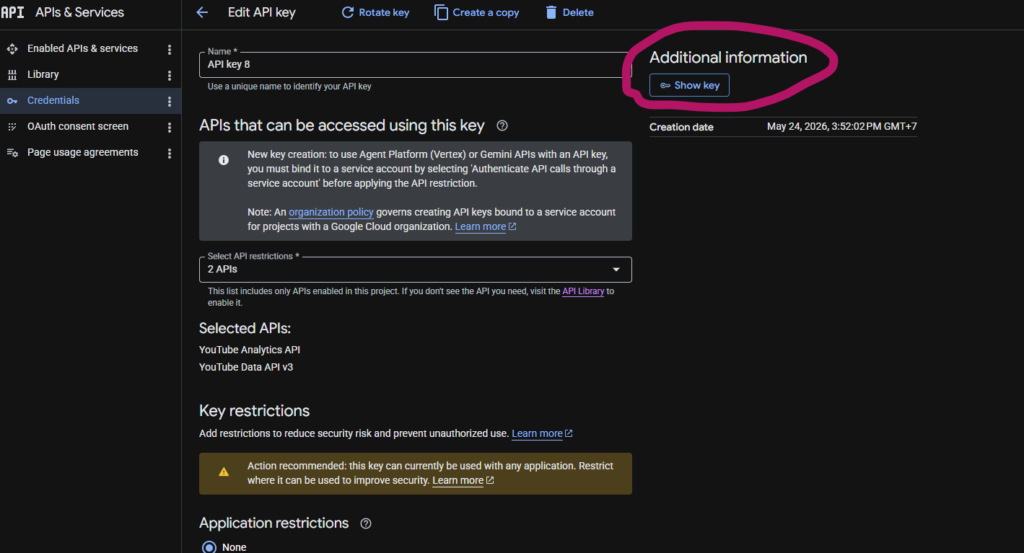
Security Warning: Because API keys do not feature user authorization challenges, they are highly vulnerable. If an API key is exposed in a public GitHub repository or client-side JavaScript bundle, malicious actors can drain your daily processing budget within minutes.
OAuth 2.0 Credentials (Private Data and Write Operations)
OAuth 2.0 is a robust token exchange architecture. It is strictly required whenever your application needs to execute write operations or read private user data.
If your application needs to automatically upload video files, alter metadata on a client’s channel, edit private playlists, or moderate comment flags, you must deploy an OAuth 2.0 client credential architecture. This workflow generates secure access and refresh tokens mapped directly to an explicit permission framework.
3. Configuring the OAuth Consent Screen and Credentials
If your application handles write operations or interfaces with client data channels, you must configure your OAuth consent parameters before generating security tokens.
Step 1: Configure the OAuth Consent Screen
In your Cloud Console sidebar, click APIs & Services > OAuth consent screen. Select your User Type:
- Internal: Restricted exclusively to accounts inside your Google Workspace organization (ideal for proprietary in-house tools).
- External: Available to any external Google account holder (required for commercial software).
Click Create and complete the mandatory app registration fields, including your App Name, User Support Email, and Developer Contact Information.
Step 2: Define Explicit Access Scopes
Progress to the Scopes configuration panel. Scopes dictate the exact boundaries of your application’s access permissions. To keep your app secure, follow the principle of least privilege by selecting only the specific scopes your code requires to function.
| Authorization Scope | Permission Access Profile | Risk Profile Classification |
.../auth/youtube.readonly | View public and private digital channel configurations, metadata assets, and video properties | SSL Mild / Read-Only |
.../auth/youtube.upload | Programmatically upload video files, update publishing states, and modify primary channel thumbnails | SSL High-Risk / Write Access |
.../auth/youtube | Complete administrative management of connected channels, including structural deletion tools | SSL Critical / Full Account Control |
.../auth/youtube.force-ssl | Enforce mandatory secure SSL state transfers during data mutation requests | SSL High-Risk / Infrastructure Management |
Step 3: Provision Credentials
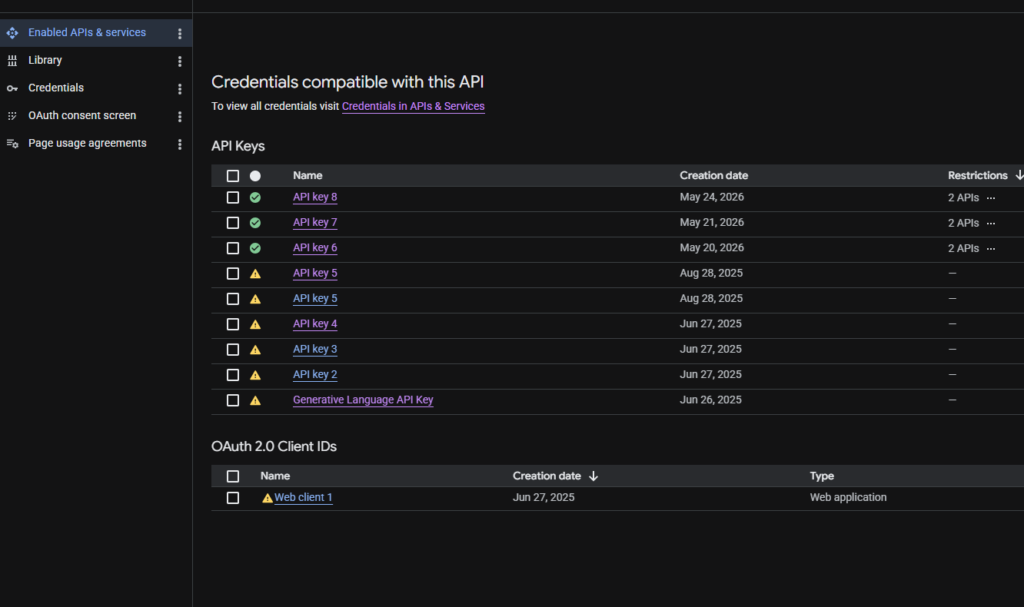
After saving your consent screen configurations, navigate to the Credentials screen in the sidebar. Click the top action bar item Create Credentials and select your required type:
- For public read pipelines: Select API Key. Immediately click the newly generated key to apply HTTP referrer or IP address restrictions.
- For advanced write integration: Select OAuth client ID. Choose your Application Type (e.g., Web application or Desktop app). Define your Authorized redirect URIs (the secure callback endpoints where your application listens for token handshakes, such as
http://localhost:8080/oauth2callback), then click Create. Download the resulting configuration file asclient_secret.jsonand store it securely within your environment configuration layers.
4. Mastering the Token Quota Architecture
The YouTube Data API v3 does not limit consumption based on the raw number of HTTP calls. Instead, it uses a calculated Token Quota System designed to maintain platform stability. Failing to account for this system will quickly cause application-wide outages.
The Quota System Framework
Every Google Cloud project starts with a baseline allocation of 10,000 free quota units per day, which resets daily at midnight Pacific Time. Every API endpoint has a fixed cost assigned to it based on its computational complexity.
Total Daily Capital (10,000 Units) ➔ Endpoint Interaction ➔ Fixed Unit Deduction ➔ Zero-State Execution Block
High-Fidelity Quota Consumption Analysis
Understanding the precise weight of each transaction allows you to architect an efficient caching strategy:
- Read Properties (
videos.list,channels.list): Cost 1 unit per call. You can retrieve extensive structural data arrays for up to 50 items simultaneously within a single batch query for just one unit. - Write Operations (
videos.update,playlists.insert): Cost 50 units per call. Mutating fields or building fresh programmatic assets drains your daily budget 50 times faster than standard read queries. - Search Invocations (
search.list): Cost 100 units per call. Because search requires running complex multi-indexed sorting algorithms across the entire platform matrix, running just 100 search requests will completely exhaust your default daily allotment. - Media Upload Invocations (
videos.insertmultipart): Cost 1,600 units per execution. Programmatically pushing a raw video file to the encoding servers consumes a massive portion of your daily budget, capping unoptimized systems at a maximum of 6 uploads per day.
5. Production Integration: Python API Implementation
Below is a production-ready Python snippet demonstrating how to authenticate with an API key, construct a secure service client, and execute an optimized query against public video metadata.
System Preparation
Execute this command in your terminal setup to install the official, Google-signed client libraries:
Bash
pip install google-api-python-client google-auth-httplib2 google-auth-oauthlib
Production Script Execution Architecture
Save this code block as youtube_fetch.py. This script targets the platform’s video metrics engine to extract real-time view counts, like ratios, and content tagging arrays.
Python
import os
import json
from googleapiclient.discovery import build
from googleapiclient.errors import HttpError

def execute_video_data_extraction(target_video_id: str) -> dict:
    """
    Initializes a YouTube Data API v3 client to extract high-fidelity video analytics metadata.
    """
    # Pull the token securely from the system's environment variables
    DEVELOPER_API_KEY = os.environ.get("YOUTUBE_API_KEY")

    if not DEVELOPER_API_KEY:
        raise ValueError("Critical System Failure: YOUTUBE_API_KEY environmental variable not discovered.")

    # Establish the authenticated service connection profile
    youtube_client = build("youtube", "v3", developerKey=DEVELOPER_API_KEY)

    try:
        # Request localized tracking data blocks using an optimized 1-unit call
        api_response = youtube_client.videos().list(
            part="snippet,statistics,contentDetails",
            id=target_video_id
        ).execute()

        # Verify the API returned matching results
        if not api_response.get("items"):
            return {"error": f"No video asset discovered matching ID: {target_video_id}"}

        return api_response

    except HttpError as api_error:
        print(f"An infrastructure transmission error occurred: {api_error}")
        return {"error": str(api_error)}

if __name__ == "__main__":
    # Example Target: YouTube's first video asset id
    SAMPLE_VIDEO_ID = "jNQXAC9IVRw"

    print(f"Initializing data retrieval for video asset: {SAMPLE_VIDEO_ID}...")
    video_metadata_payload = execute_video_data_extraction(SAMPLE_VIDEO_ID)

    # Output the structured payload with clean indentation
    print(json.dumps(video_metadata_payload, indent=2))
6. Advanced Error Handling & Architecture Optimization
Building an enterprise-grade integration means engineering for failures. If your code does not gracefully handle quota walls, network latency, or API errors, your application will eventually break in production.
Implementing Exponential Backoff
When your system experiences rate limits (HTTP Error 429 Too Many Requests) or temporary server anomalies (500 or 503 service interruptions), do not let your loop immediately re-fire requests. This creates an accidental DDoS effect on the API gateways.
Instead, implement an exponential backoff algorithm. If a call fails, pause your execution loop for $n$ seconds. If it fails again, double the delay interval ($2n$, then $4n$, then $8n$) before trying again. This allows the API systems to clear bottlenecks and protects your app’s processing queue.
ETags and Conditional Caching Strategies
The most effective way to manage your quota budget is by avoiding duplicate API requests entirely. The YouTube Data API v3 passes unique identifiers known as ETags inside every response header payload.
Application API Request ➔ Includes 'If-None-Match: [ETag]' ➔ YouTube Compares State ➔ Returns 304 Not Modified (0 Quota Spent)
When your application pulls data (such as a channel’s statistics suite), cache the response along with its specific ETag value in a high-speed database like Redis.
The next time your code needs to check that same resource, pass the cached ETag inside the If-None-Match request header. If the data hasn’t changed on YouTube’s servers, the API will respond with a 304 Not Modified status code. This transaction consumes zero quota units, instantly expanding your daily operational limits.
7. Scaling Up: Securing a Corporate Quota Extension
If your application scales up successfully, your production infrastructure will eventually outgrow the standard 10,000 daily unit allowance. To prevent service disruptions, you must systematically apply for an enterprise quota extension.
Step 1: Run a Compliance Check
Before submitting an extension request, audit your codebase to ensure it complies with the official YouTube API Services Terms of Service. The review team will manually check your user interfaces, and any compliance issues will result in an immediate rejection. Make sure your application features an accessible link to the YouTube terms of service and explicitly details how user data is handled.
Step 2: Access the Quota Modification Matrix
Navigate back to your Google Cloud Console. Go to IAM & Admin > Quotas. Use the services dropdown filter to select YouTube Data API v3. Click the row checkbox and select Edit Quotas.
Step 3: Complete the Audit Questionnaire
Google will direct you to the official YouTube API Services – Audit and Quota Extension Form. This form requires explicit details about your application’s architecture:
- Detailed Architectural Justification: Provide a clear breakdown of why your application requires a larger quota, supported by historical telemetry charts showing your average daily consumption.
- Mathematical Unit Projections: Show exactly how you calculated your requested quota extension. Use real math to justify the upgrade:
$$\text{Projected Daily Budget} = (\text{Total Active Users} \times \text{Expected Operations Per User}) \times \text{Endpoint Unit Weight}$$
- UX Context Video: You must provide a clean, unedited video demonstration showing exactly how your application interacts with the API endpoints. If your app uses OAuth authentication, show the complete user login flow, including the clear display of the client ID in the browser URL bar.
Once submitted, the developer engineering teams will review your request. Review cycles typically take between 3 and 10 business days. Approved projects receive a significantly higher daily allocation—often scaled up to millions of operational units—allowing your enterprise application to expand without hitting algorithmic blocks.