How to Use NotebookLM to Turn Your Lecture Notes into a Podcast: Learn how to use Google NotebookLM’s Audio Overview to turn lecture notes into a professional AI podcast. Follow our 2026 step-by-step guide to study on the go.
In our previous post, we ranked NotebookLM as the #1 AI tool for students in 2026. Why? Because it features a “magic button” that can turn dry, 40-page PDFs or messy lecture notes into a high-quality, two-person podcast conversation.
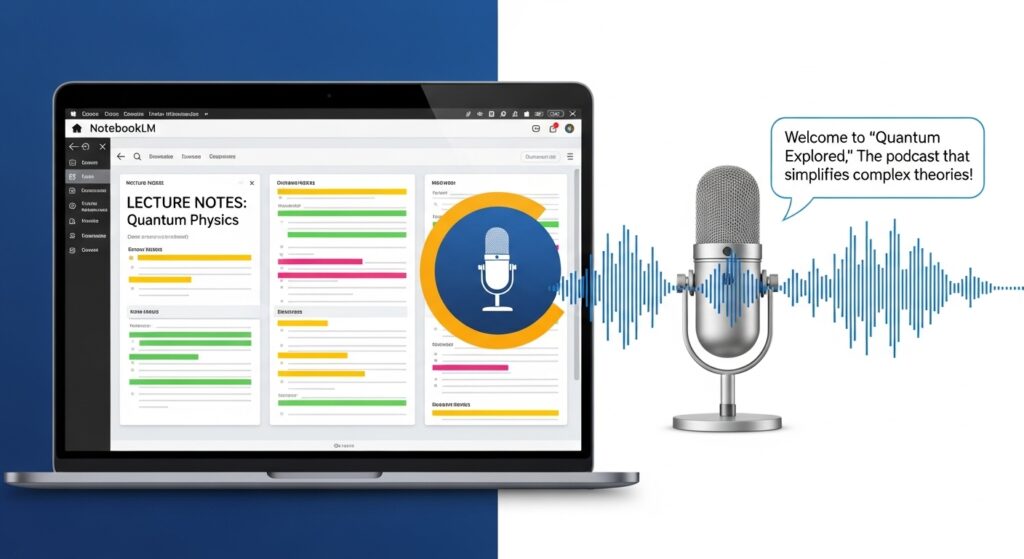
At SolutionsTool.com, we call this “Passive Learning.” Instead of staring at a screen for three hours, you can listen to a lively “Deep Dive” into your curriculum while you’re at the gym, commuting, or doing chores.
Here is exactly how to do it using the latest 2026 features.
Step 1: Gather and Prepare Your Sources
NotebookLM isn’t just a chatbot; it’s a “grounded” AI. It only talks about what you give it. For the best podcast results, gather:
- Lecture Transcripts: If you recorded your class using Otter.ai or Zoom, use the text transcript.
- PowerPoint Slides: Save your professor’s slides as a PDF.
- Your Own Notes: Even messy, bulleted notes from your phone work perfectly.
Step 2: Create Your Notebook
- Navigate to notebooklm.google.com.
- Click “New Notebook” and give it a clear name (e.g., “Biology 101 – Midterm Prep”).
- Upload your sources: You can drag and drop up to 50 files per notebook, including Google Docs, PDFs, and even YouTube URLs.
Step 3: Customize Your Podcast (New for 2026)
Before you hit generate, you can now “steer” the AI hosts. In the Notebook Guide section (usually on the right or bottom), look for the “Customize” button under Audio Overview.
Try these 2026 custom prompts:
- “Focus specifically on the definitions for the upcoming quiz.”
- “Explain this material like I’m a beginner, using lots of real-world analogies.”
- “Focus on the contradictions between Source A and Source B.”
Step 4: Generate the “Deep Dive”
Click the “Generate” button under the Audio Overview header.
- The Process: It will take 2–5 minutes for the AI to “read” your notes and script a natural-sounding conversation between two hosts (usually one “enthusiastic explainer” and one “curious questioner”).
- The Result: You’ll get a 5–15 minute audio file where the hosts banter, crack jokes, and simplify your most difficult lecture topics.
Step 5: Master the “Interactive Mode”
New in late 2025 and perfected in 2026 is Interactive Mode. While listening, you can click the “Join” button.+1
- If the AI hosts say something confusing, you can interrupt them by speaking or typing a question.
- The hosts will stop their “podcast,” answer your specific question using your sources, and then smoothly transition back into their discussion. It’s like having a podcast where the hosts can actually hear you!
🎧 3 Pro-Tips for Better Study Podcasts
- Download for Offline Use: Use the Download icon to save the MP3. This is a lifesaver for students with long commutes or poor campus Wi-Fi.
- Adjust the Speed: If you’re in a rush, use the 1.5x playback speed. The AI voices in 2026 are clear enough that they don’t sound distorted even when sped up.
- Cross-Reference with Citations: If the hosts mention a specific fact that sounds important for your exam, look at the AI Chat window. NotebookLM provides “Citations” (small numbers) that link directly back to the exact sentence in your original notes.
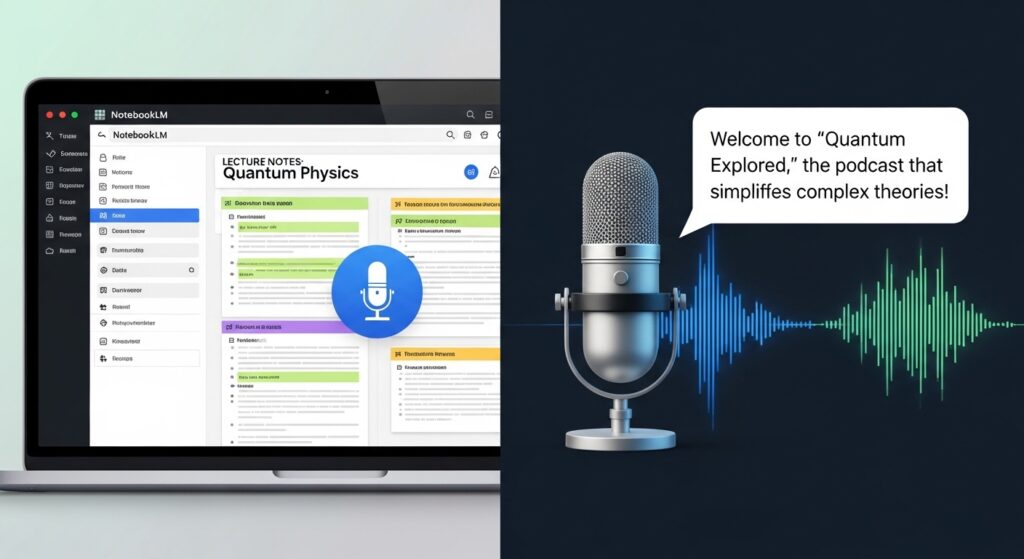
🚀 Why This Matters for SolutionsTool.com Readers
In 2026, the students who excel aren’t the ones working the hardest—they are the ones using the most efficient solutions. Turning your notes into a podcast is the ultimate productivity hack for managing a heavy course load.