[yt_data_tool]
YouTube Data Video Generator: Complete Guide to Creating Automated Data-Driven Videos
Learn how to build a YouTube data video generator using Python, APIs, and automation tools. Step-by-step guide to create faceless data storytelling videos from spreadsheets.
Introduction
A YouTube Data Video Generator is an automated system that transforms raw data (CSV files, Google Sheets, APIs) into engaging video content without manual editing. These “faceless” videos typically feature:
- Animated charts and graphs
- AI-generated voiceover
- Stock footage or motion graphics
- Text overlays and captions
This approach is perfect for channels focused on data storytelling, market updates, sports statistics, historical trends, or financial reports.
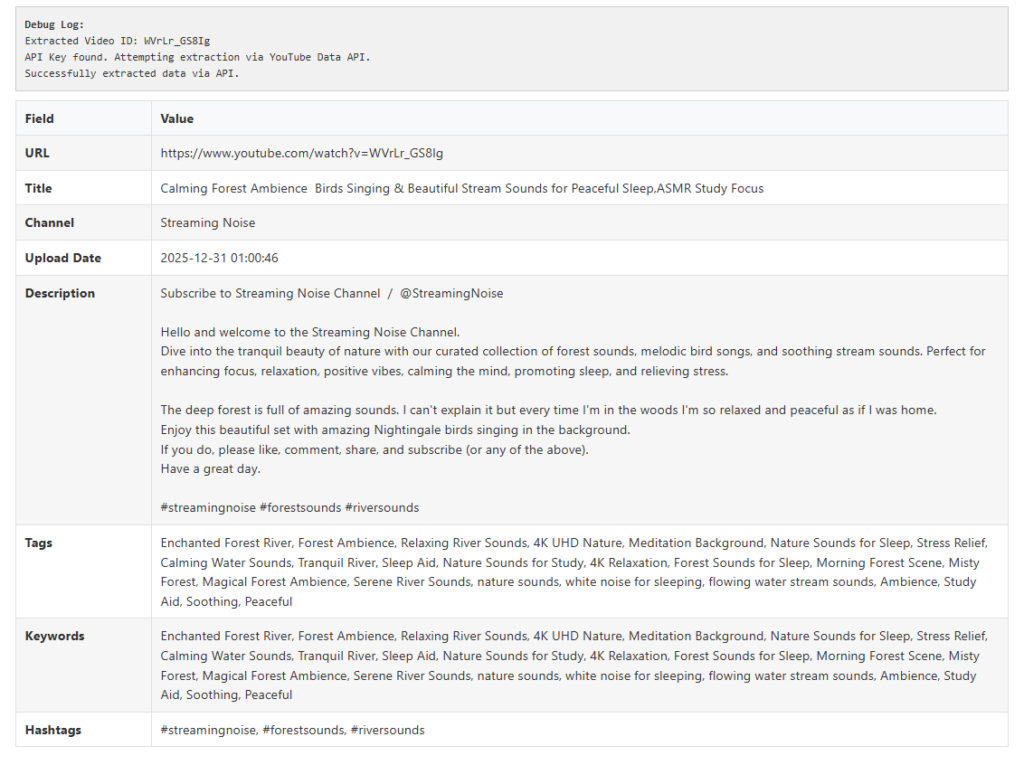
Example use cases: “Top 10 countries by GDP over time,” “COVID-19 case trends,” “Stock price history,” or “Sports team rankings.”
How a Data Video Generator Works
The general pipeline has six stages:
| Stage | Description | Tools |
|---|---|---|
| 1. Data collection | Fetch data from APIs, databases, or spreadsheets | Python (pandas), Google Sheets API |
| 2. Data processing | Clean, sort, and format the data | pandas, NumPy |
| 3. Visualization | Generate charts, graphs, or animations | Matplotlib, Plotly, Manim |
| 4. Voiceover | Convert text script to spoken audio | TTS (gTTS, ElevenLabs, Azure TTS) |
| 5. Video assembly | Combine visuals, audio, and transitions | MoviePy, FFmpeg, OpenCV |
| 6. Upload automation | Post to YouTube via API | YouTube Data API v3 |
Complete Python Code Example
Below is a working prototype that generates a bar chart race video from a CSV file.
Step 1: Install Required Libraries
pip install pandas matplotlib seaborn moviepy gtts opencv-python headless-chromeStep 2: Data Preparation (CSV Format)
Create a file data.csv:
| Year | Country | Value |
|---|---|---|
| 2020 | USA | 100 |
| 2020 | China | 90 |
| 2020 | Germany | 70 |
| 2021 | USA | 110 |
| 2021 | China | 100 |
| 2021 | Germany | 75 |
Step 3: Python Script – Full Generator
import pandas as pd
import matplotlib.pyplot as plt
import matplotlib.animation as animation
from gtts import gTTS
from moviepy.editor import *
import os

# ========== 1. LOAD DATA ==========
df = pd.read_csv('data.csv')
years = sorted(df['Year'].unique())
categories = df['Country'].unique()

# ========== 2. CREATE ANIMATED CHART ==========
fig, ax = plt.subplots(figsize=(10, 6))

def animate(year):
    ax.clear()
    year_data = df[df['Year'] == year].sort_values('Value', ascending=True)
    bars = ax.barh(year_data['Country'], year_data['Value'], color='skyblue')
    ax.set_title(f'Data by Country - {year}', fontsize=16)
    ax.set_xlabel('Value')
    ax.set_xlim(0, df['Value'].max() + 10)
    for bar, val in zip(bars, year_data['Value']):
        ax.text(val + 1, bar.get_y() + bar.get_height()/2, str(val), va='center')
    return bars

ani = animation.FuncAnimation(fig, animate, frames=years, repeat=False)
ani.save('chart_animation.gif', writer='pillow', fps=2)
plt.close()

# ========== 3. GENERATE VOICEOVER ==========
script = "This chart shows data trends from 2020 to 2021. The United States leads, followed by China and Germany."
tts = gTTS(script, lang='en')
tts.save("voiceover.mp3")

# ========== 4. CREATE VIDEO ==========
# Load animation (convert GIF to video clip)
gif_clip = VideoFileClip('chart_animation.gif')
audio_clip = AudioFileClip("voiceover.mp3")

# Loop animation if longer than audio
if gif_clip.duration < audio_clip.duration:
    gif_clip = gif_clip.loop(duration=audio_clip.duration)

final_clip = gif_clip.set_audio(audio_clip)
final_clip.write_videofile("output_video.mp4", fps=8)

print("Video generated: output_video.mp4")
This script creates a bar animation, adds voiceover, and exports an MP4 file ready for YouTube.
Advanced Features for Better Results
1. Bar Chart Race (Most Popular for Data Videos)
Use bar_chart_race library:
pip install bar-chart-raceimport bar_chart_race as bcr
df_pivot = df.pivot(index='Year', columns='Country', values='Value')
bcr.bar_chart_race(df_pivot, 'bar_race.mp4', title='Data Race by Year')2. Professional Voiceover with ElevenLabs
import requests

CHUNK_SIZE = 1024
url = "https://api.elevenlabs.io/v1/text-to-speech/21m00Tcm4TlvDq8ikWAM"
headers = {"xi-api-key": "YOUR_API_KEY"}
data = {"text": script, "voice_settings": {"stability": 0.5, "similarity_boost": 0.5}}

response = requests.post(url, json=data, headers=headers)
with open('voiceover_pro.mp3', 'wb') as f:
    for chunk in response.iter_content(chunk_size=CHUNK_SIZE):
        f.write(chunk)
3. Add Background Music & Sound Effects
from moviepy.editor import *

video = VideoFileClip("output_video.mp4")
background_music = AudioFileClip("background.mp3").volumex(0.3)
voiceover = AudioFileClip("voiceover.mp3")

final_audio = CompositeAudioClip([voiceover, background_music])
video = video.set_audio(final_audio)
video.write_videofile("final_video.mp4")
4. Dynamic Text Overlays
txt_clip = TextClip("Data Source: World Bank", fontsize=24, color='white', font='Arial')
txt_clip = txt_clip.set_position(('center', 'bottom')).set_duration(video.duration)
video = CompositeVideoClip([video, txt_clip])
YouTube Automation: Full Pipeline
Directory Structure
data_video_generator/
├── data/
│   └── source.csv
├── scripts/
│   ├── fetch_data.py
│   ├── generate_chart.py
│   └── create_video.py
├── assets/
│   ├── intro.mp4
│   ├── music.mp3
│   └── thumbnail_template.png
├── output/
│   └── videos/
└── upload_to_youtube.py
Automated Upload with YouTube API
from google.oauth2.credentials import Credentials
from googleapiclient.discovery import build
from googleapiclient.http import MediaFileUpload

def upload_to_youtube(video_path, title, description, tags):
    credentials = Credentials.from_authorized_user_file('token.json')
    youtube = build('youtube', 'v3', credentials=credentials)

    body = {
        'snippet': {
            'title': title,
            'description': description,
            'tags': tags,
            'categoryId': '22'  # 22 = People & Blogs
        },
        'status': {
            'privacyStatus': 'public'
        }
    }

    media = MediaFileUpload(video_path, chunksize=-1, resumable=True)
    request = youtube.videos().insert(part=','.join(body.keys()), body=body, media_body=media)
    response = request.execute()
    print(f"Uploaded: https://youtube.com/watch?v={response['id']}")

upload_to_youtube('output_video.mp4', 'Amazing Data Trend', 'Watch this data story...', ['data', 'trends'])
Best Data Sources for YouTube Data Videos
| Source | Type | API Available |
|---|---|---|
| World Bank | Economic indicators | Yes |
| Google Trends | Search interest | Yes |
| Yahoo Finance | Stock prices | Yes (yfinance) |
| Sports Reference | Sports statistics | Scraping |
| Kaggle | Datasets | Yes |
| Our World in Data | Global metrics | Yes (CSV) |
| Reddit API | Social trends | Yes |
Example: Fetch Real-Time Bitcoin Data
import yfinance as yf
import pandas as pd

btc = yf.download('BTC-USD', period='1y', interval='1d')
btc['Close'].to_csv('bitcoin_data.csv')
Monetization Strategies
| Method | Description |
|---|---|
| YouTube Ad Revenue | Monetize after 1,000 subscribers & 4,000 watch hours |
| Affiliate Marketing | Promote data tools (Tableau, Excel, Python courses) |
| Sponsorships | Data companies sponsor your episodes |
| Selling Templates | Sell your video generation script or template |
| Patreon | Offer early access or custom data videos |
Common Pitfalls & Solutions
| Problem | Solution |
|---|---|
| Copyright claims on music | Use royalty-free music (YouTube Audio Library, Epidemic Sound) |
| Monotone voiceover | Use expressive TTS (ElevenLabs) or hire voice actors |
| Charts too fast/slow | Adjust fps and interval parameters |
| Low resolution | Export at 1080p (1920×1080) minimum |
| YouTube demonetization | Avoid reused content – add unique commentary and visuals |
Alternative No-Code Data Video Tools
If you prefer not to code:
| Tool | Features | Price |
|---|---|---|
| Flourish | Animated bar races, line charts | Free tier available |
| Javelin | AI-generated data stories | Paid |
| Vidyo.ai | Convert articles to videos | Paid |
| Pictory.ai | Script-to-video with stock footage | Paid |
| Kapwing | Manual data video editing | Free + paid |
Example YouTube Data Video Script Template
Here is a script template for a “Top 10 Countries by GDP” video:
[INTRO - 5 seconds]
"Welcome to Data Daily!"

[HOOK - 10 seconds]
"From 1960 to today, the global economy has completely transformed. Which country led the way?"

[BODY - 60 seconds]
"In 1960, the United States dominated with over 40% of global GDP.
But by 1980, Japan had risen to second place.
In 2000, Germany and China began their climb.
And today, China is neck-and-neck with the US."

[CONCLUSION - 15 seconds]
"Thanks for watching! Subscribe for more data stories."

[CTA - 5 seconds]
"Like and comment which country surprised you most."
Scaling to a Full YouTube Channel
To run a data-driven YouTube channel on autopilot:
- Schedule – Run the script daily/weekly with cron jobs or GitHub Actions.
- Thumbnails – Auto-generate using Pillow or Cloudinary.
- SEO – Use YouTube API to update titles, descriptions, and tags.
- Social sharing – Post clips to TikTok, Instagram Reels, and Twitter using automation tools (Zapier, Make).
Frequently Asked Questions
Q: Do I need a powerful computer?
A: No – the script runs on any laptop. For large animations, use a cloud server (Google Colab, AWS, or DigitalOcean).
Q: Can I use real-time data?
A: Yes – connect to live APIs (stock prices, weather, sports scores) and generate videos on a schedule.
Q: How long does video generation take?
A: For a 60-second video, approximately 2–5 minutes depending on chart complexity and TTS speed.
Q: Will YouTube flag this as automated content?
A: Not if you add unique narration, varied visuals, and comply with YouTube’s “reused content” policy. Always add human oversight.
Q: Can I sell these videos?
A: Yes – many creators sell data video templates or custom videos to businesses.
Conclusion
A YouTube Data Video Generator is a powerful tool for creators who want to produce consistent, engaging content without manual editing. With Python, libraries like bar_chart_race and moviepy, and TTS services like ElevenLabs, you can turn any spreadsheet into a polished video in minutes.
Start small – generate one bar chart race video from a CSV file. Then expand to real-time APIs, custom animations, and automated uploads. Within weeks, you can run a fully automated data storytelling channel.